2 Navigate VS Code

Use VS Code to read the lab README, open a terminal in the right folder, and inspect the agent’s changes.
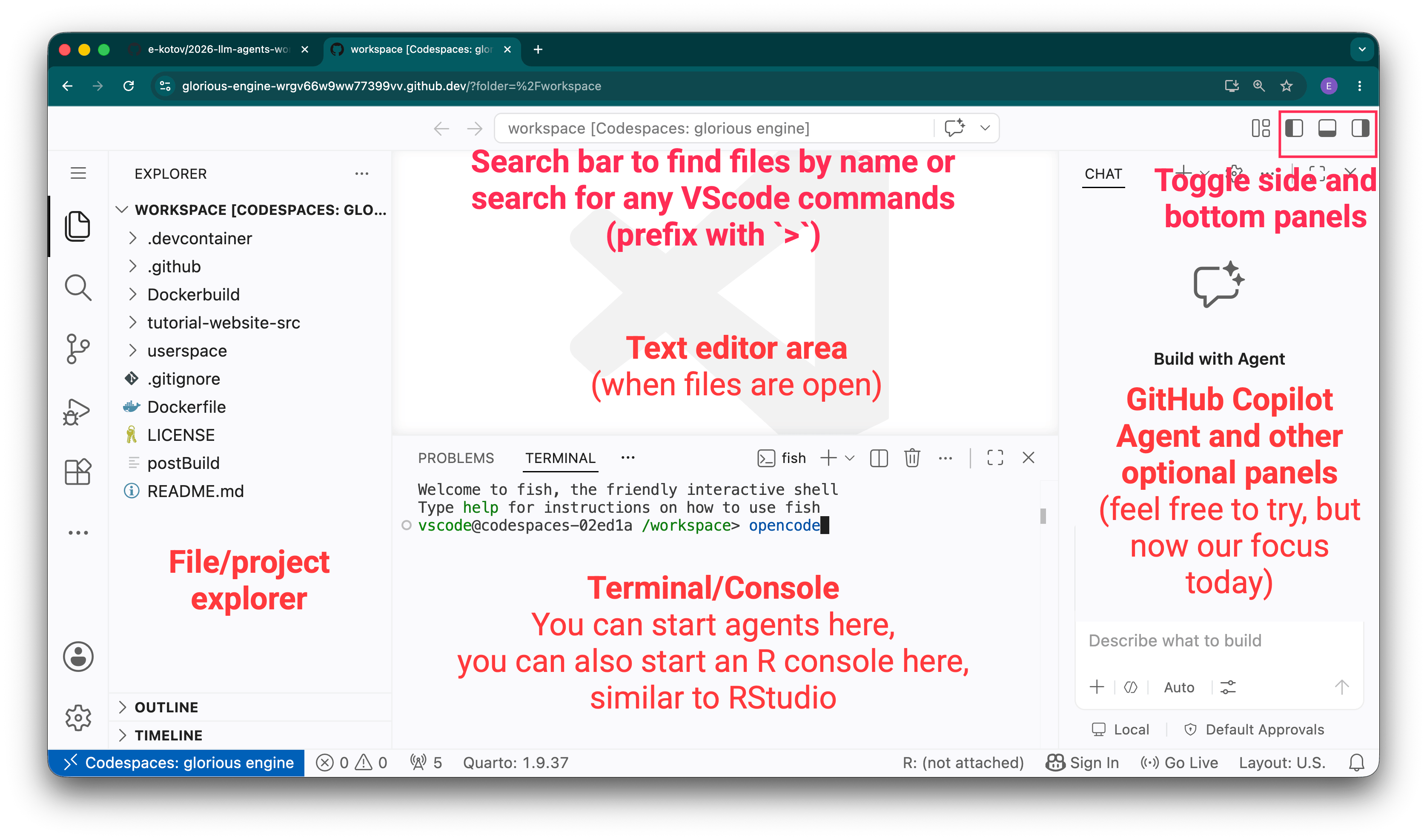
2.1 Find the essentials
- In Explorer, open
exercises/lab-01-first-contact/README.mdand keep it visible. - Use Open Editors to return to changed files.
- Open Terminal → New Terminal. Run
pwdbefore any command that changes files. - Use Source Control to inspect changed files and diffs. Read a large diff before accepting it.
To work inside one folder, right-click it and choose Open in Integrated Terminal. You can also use File → Open Folder to open one lab as the VS Code workspace.
The workspace is the folder shown at the top of Explorer. The terminal’s working directory is the folder printed by pwd. They can differ: opening a lab as the workspace changes what VS Code shows, while cd changes only that terminal. Start an agent from the lab directory because its launch directory helps determine which project files and instructions it discovers. An agent started at the repository root can see a much wider tree than one started inside a lab.
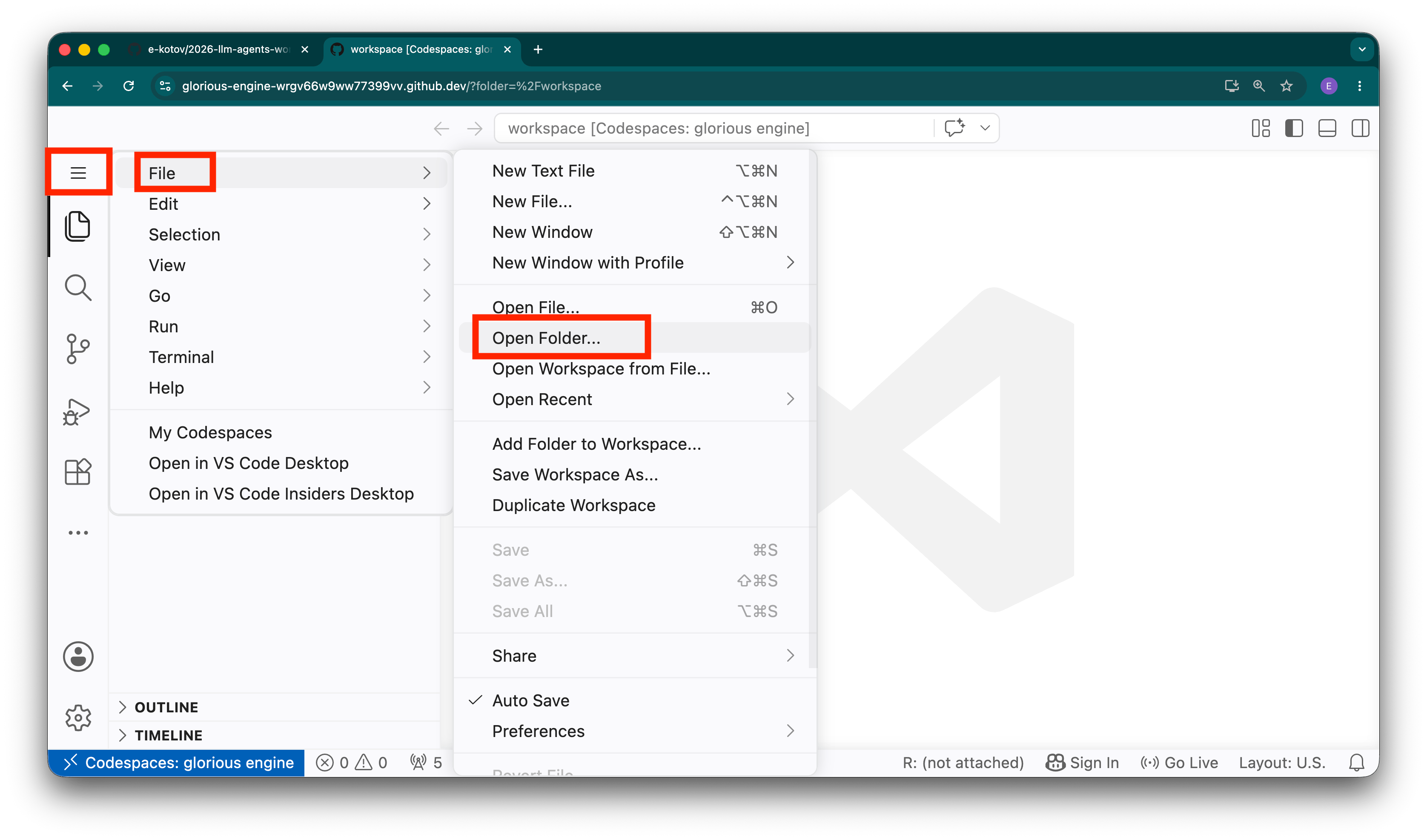
Watch how to open a project, open a terminal, or browse files. If a recording looks different, follow the menus in your Codespace.
Run pwd and find . -maxdepth 2 -type f | sort | head. Ask the agent what the output tells it, then compare its answer with Explorer. Do not allow edits yet.
Useful commands: pwd (where am I?), ls (what is here?), cd folder (move into a folder), and git diff (what changed?). Check the target before running any destructive command suggested by an agent.
2.2 If you get lost
From any directory inside this repository, return to its root with:
cd "$(git rev-parse --show-toplevel)"
pwd
You should now see a path ending in /2026-09-agentic-workshop. Then enter the lab named in its README. If git rev-parse says that you are not in a Git repository, find the repository in Explorer, right-click its top folder, and choose Open in Integrated Terminal; then run the command again. To reset the visible VS Code workspace, use File → Open Folder and select that same repository folder.
2.3 Further reading
- Visual Studio Code user interface — A durable reference for Explorer, editors, panels, the terminal, and the status bar when the workshop recording looks different.