3 Navigating the Workshop Environment

Before we start interacting with agents, let’s take a moment to understand the “cockpit” of our workshop: the VS Code / GitHub Codespaces environment.
3.1 The VS Code Interface
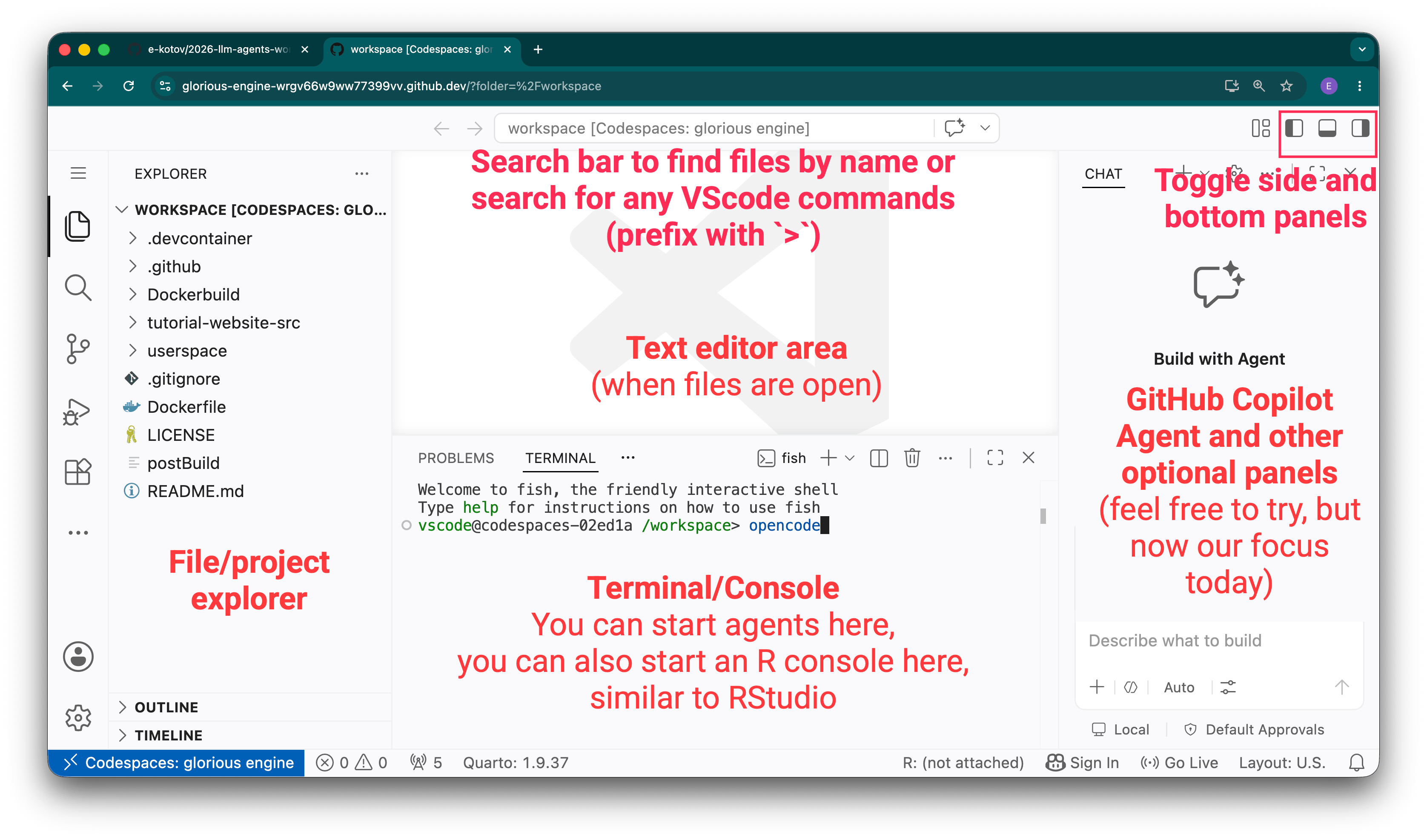
The workshop runs in a specialized container that includes all necessary tools. See the figure below for the main elements of the VS Code interface in the Codespace environment. Click the image to zoom in.
3.2 Using folders as projects
3.2.1 Open project in a new window
In VS Code a folder is considered a project or workspace.
To open any folder as a new project/workspace, right-click on the folder and choose Open New Workbench Here.
This allows to easily manage this workspace as well as Git repository for this specific folder.
3.2.2 Open terminal in a specific folder
For quick agent tasks in any folder without opening a new window, you can also open a terminal directly in that folder. Right-click on the folder and select Open in Integrated Terminal.
If you open the folder in terminal this way and start an agent there, it will treat this directory as its workspace and will have access to all files in this directory and its subdirectories. But you will not be able to just as easily manage this folder as a separate project in VS Code or Git, as the whole Codespace will be treated as one project by VS Code.
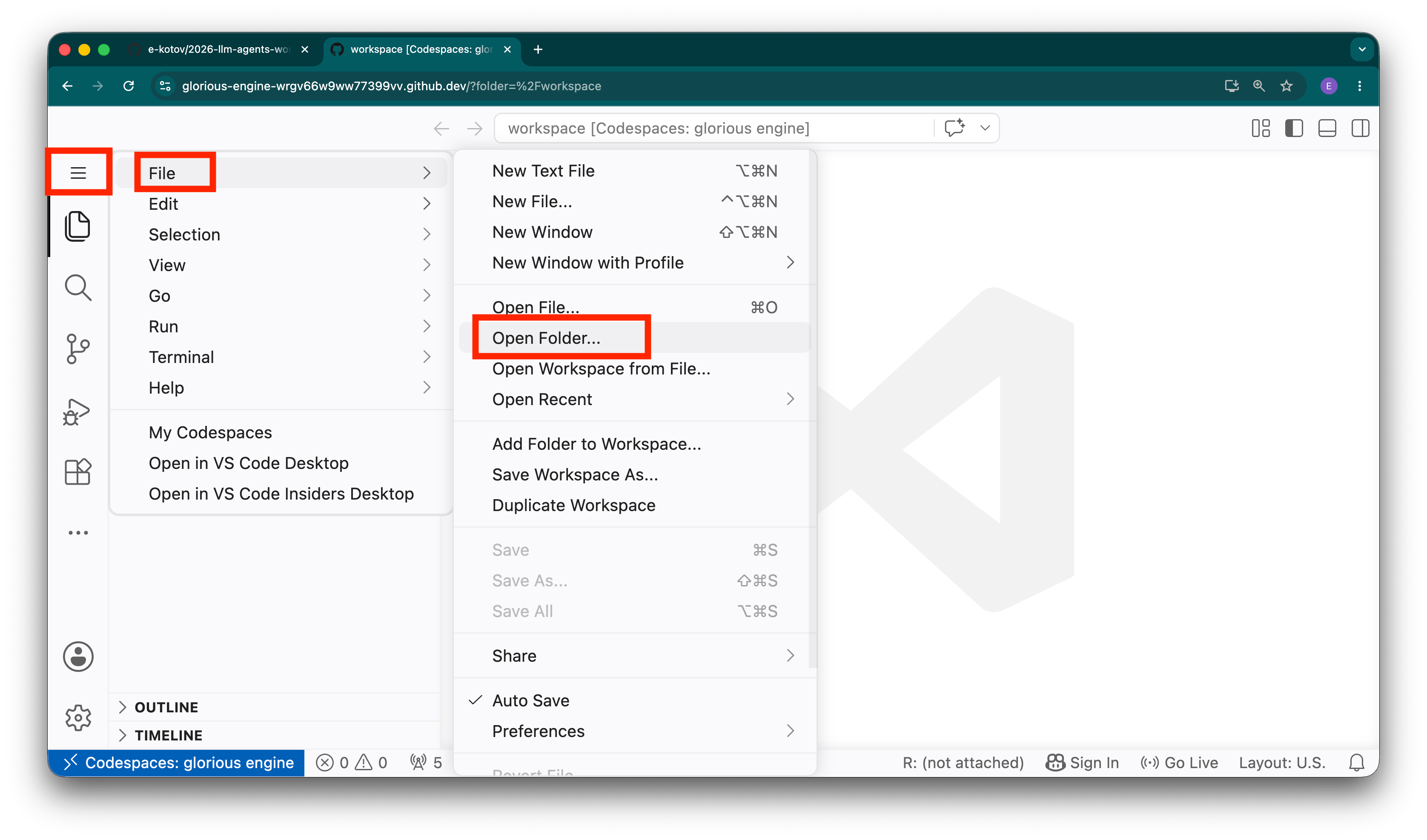
If at any point you feel lost, you can always reopen the default folder that the Codespaces started with by clicking the burger menu in the top left corner of VS Code and selecting File -> Open Folder and pasting ‘/workspace/’ there. Or use the File -> Open Recent menu to find the folder you want to open.
3.2.3 Launching an Agent
In a terminal in the bottom of VS Code you can run any terminal command, you can run R or Python consoles, and also agents.
Commands to launch the agents will be provided in the next sections.
If you are not familiar with terminal, common Linux commands are:
ls- list files in the current directorycd- change directory (e.g.cd folder_nameto go into a folder,cd ..to go back to the parent directory)pwd- print working directory, shows the current directory you are inmkdir- make a new directory (e.g.mkdir new_folderto create a new folder)rm- remove a file or folder (e.g.rm file_nameto remove a file,rm -r folder_nameto remove a folder and all its contents). Just make sure to never runrm -rf /command, as it will delete everything in the container and break your Codespace.
You don’t need to memorize these, as agent can navigate the terminal and file system for you. All you need to do is give it instructions in natural language and allow it to do things for you.
3.3 Global file explorer
VS Code is designed to use specific folders as projects or workspaces, so by default you only see the files in the current directory in the file explorer pane.
If you need to browse all files in the Codespace, you can use File Explorer extension preinstalled for you in the Codespace:
File Explorer extension to browse all files in the Codespace.