2 Environment Setup

To ensure a consistent, secure, and hassle-free experience, we will use a pre-configured cloud-based development environment. We will use GitHub Codespaces.
First-time environment setup and container building can take up to 10 minutes to compile and prepare.
We highly recommend launching the codespace right at the beginning of the workshop. While the setup runs automatically in the background, you can continue to fully focus on the presentations, live demonstrations, and slides shown by the tutor.
2.1 🛠️ Launching the Environment
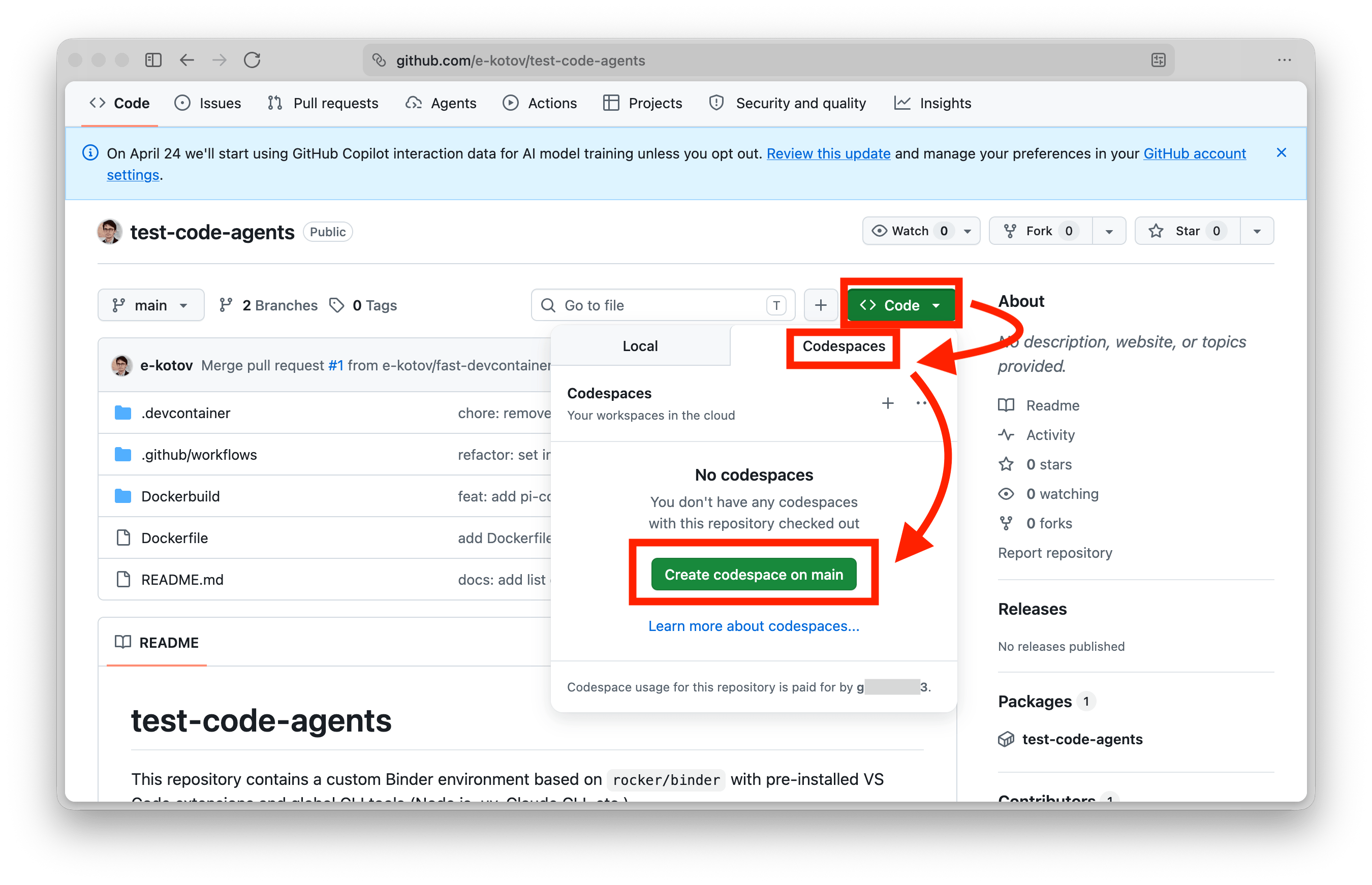
To launch the Codespaces environment manually from the GitHub interface, follow these steps:
- Navigate to the workshop repository.
- Click the green Code button in the top right.
- Select the Codespaces tab.
- Click Create codespace on main (or click the
...menu to configure machine size).
- It is 100% Free: GitHub provides a generous free tier of 60 hours of Codespaces usage per month for every personal account. No credit card, billing info, or payment is required.
- It is Completely Secure: The environment runs inside a secure, isolated container (virtual machine) in the cloud. It does not touch your physical computer, install any local files, or run any software on your machine. It belongs to you and it is also mostly safe to enter your account data (e.g. Google account, especialy if secondary or test account, API keys, other accounts for subscription services or services we will use during the workshop) without worrying about security or privacy issues.
2.1.1 💤 Auto-Pause & Resume
To save your free hours, the environment automatically pauses after 30 minutes of inactivity. When you restart it, your files, open tabs, and terminal history are fully preserved—just like waking up a laptop from sleep (though you may need to restart any active terminal commands or running applications).
2.2 📊 Managing Your Session & Quotas
GitHub Codespaces provides a generous free tier, but it is important to understand how usage is consumed to avoid running out of credits.
2.2.1 Monthly Free Quotas (2026)
The following quotas apply to personal accounts.1
| Account Type | Actual Usage Hours | Storage (per month) |
|---|---|---|
| GitHub Free | 60 hours | 15 GB |
| GitHub Pro | 90 hours | 20 GB |
Storage (15GB/20GB) is consumed even when the codespace is stopped. To save your storage quota, make sure to delete codespaces you no longer need at github.com/codespaces once the workshop is fully over.
2.2.2 Checking Remaining Quota
You can monitor your real-time usage and remaining balance at any time:
- Go to your GitHub Settings > Billing and plans.
- Look for the Codespaces section under Usage this month or try this direct link: GitHub Codespaces Usage.
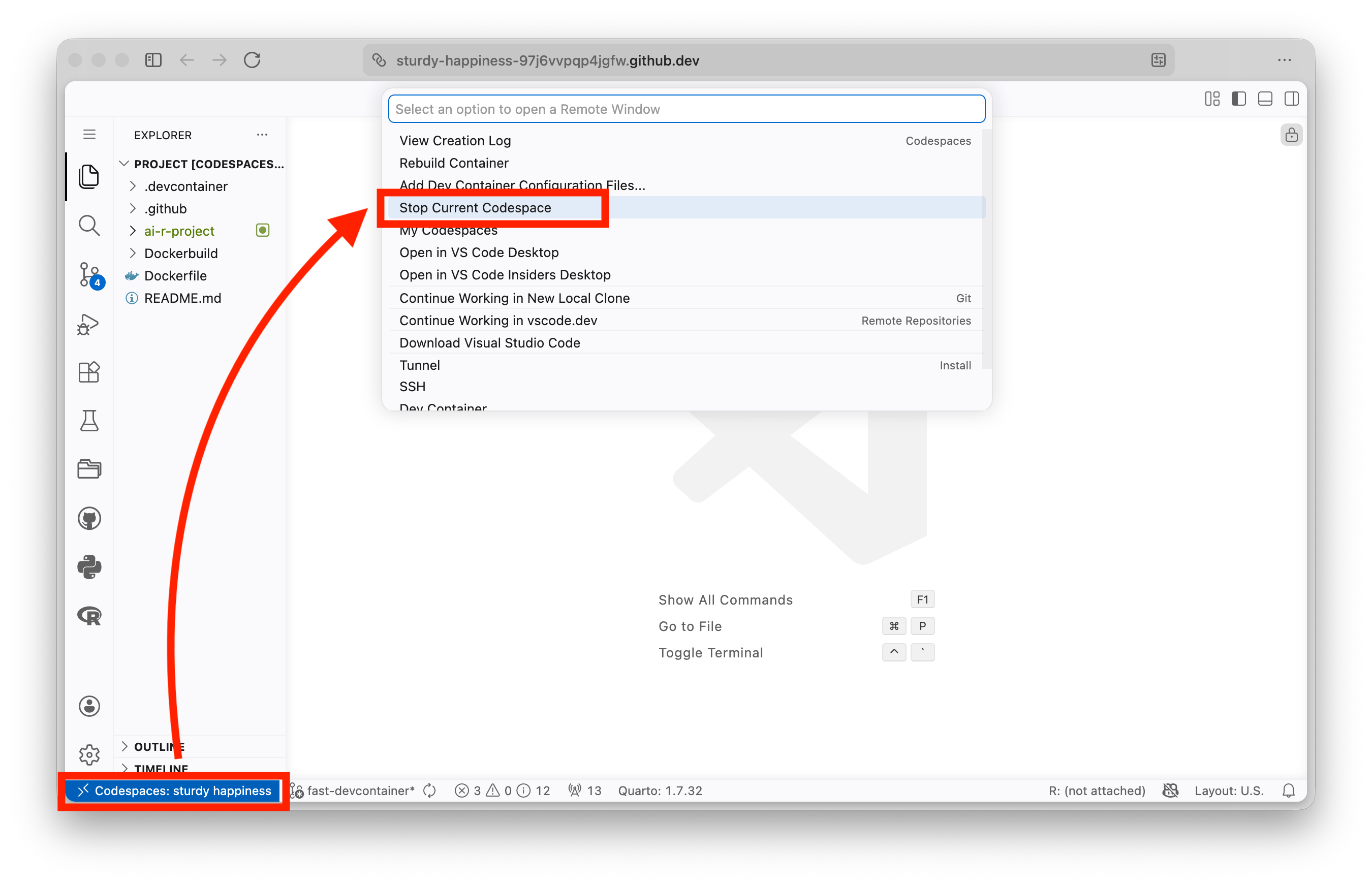
2.2.3 Stopping Your Session Manually
When you are done with a session, you can stop the codespace manually to instantly stop consuming usage hours:
While the official billing documentation lists these as 120 and 180 core hours, the minimum instance size is 2 CPU cores. This means every 1 hour of real-time work consumes 2 core hours, resulting in the actual limits shown below.↩︎